


Opal Screen Time Limit & Timer
4.4207.00 Reviews
App Specs
- Version
- 4.9.0
- Updated On
- License
- Free
- Downloads
- 500,000+
- Developer
- Opal: The Focus Company
- Categories
- Productivity
- Platform
- Android
Screenshots


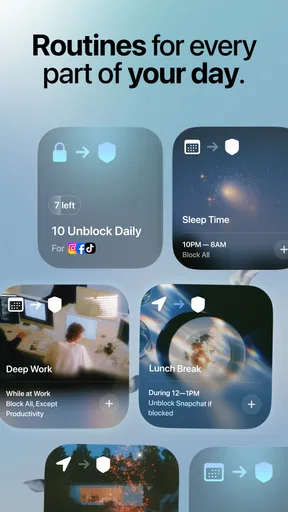

 Analysis by AppCompare
I installed Opal Screen Time Limit & Timer because I wanted a more deliberate way to handle distracting apps without turning my phone into a source of guilt. It sits in the productivity category, but I found its real purpose is narrower and more practical: helping me decide when certain apps deserve my attention and when they should stay out of the way. That distinction matters, because it is not a general task manager, note-taking tool, or digital wellbeing dashboard. It is focused on controlling interruptions and making scrolling harder to fall into automatically.
My overall impression is positive, with one important qualification: Opal works best when I treat it as a boundary-setting tool rather than a magic solution. It can support a study session, a work block, or a calmer evening, but the quality of the result depends on how thoughtfully I configure those boundaries. The app is free to start, is suitable for Everyone, and comes from Opal: The Focus Company. Its current version is 4.9.0, and the minimum operating system requirement is version 10.
What Opal feels like in everyday use
The first thing I noticed is that Opal changes the question from “Why did I waste so much time?” to “When should this app be available at all?” That is a healthier starting point. Instead of relying only on willpower after opening a social network or entertainment app, I can decide in advance that certain distractions should be unavailable during a defined period.
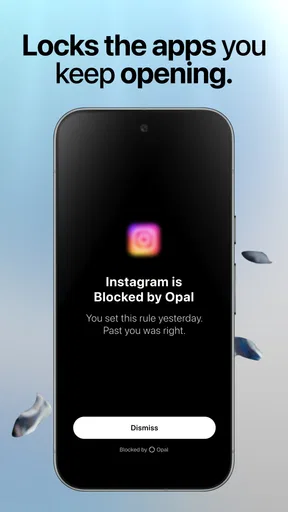
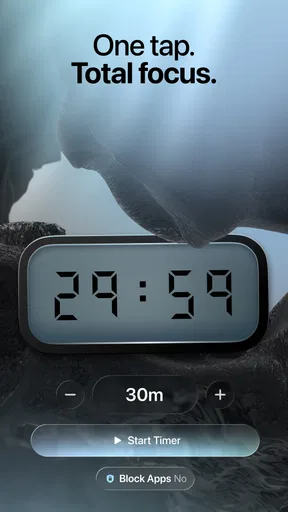
A realistic example is a morning writing session. I might need my phone nearby for authentication or an urgent call, but I do not need an endless feed competing with the document in front of me. In that situation, I would use Opal to create a focused period, keep essential communication available, and remove the apps most likely to pull me into unplanned browsing. The useful part is not simply blocking an app. It is separating necessary phone access from optional attention traps.
I also found the approach helpful in the evening. If I intend to read, sleep, or spend time with family, a screen-time limit can create a pause before an automatic scrolling habit takes over. That pause is small, but it gives me a chance to notice what I am doing. For people who open an app without a clear reason and then lose track of time, that interruption can be more useful than another notification about daily usage.
The app has earned a 4.4 average from around 8.1 thousand ratings, with more than 500 thousand installs. Those figures suggest that the idea is easy for many people to understand, but they should not be mistaken for a guarantee that every phone habit will change. Opal is most convincing when the user already knows which situations cause trouble and is willing to set limits before those situations begin.
Trust starts with visible choices
For an app that deals with screen habits, trust is especially important. I am comfortable using a focus tool only when I can understand what it is asking me to control and when the controls feel like choices I am making, not hidden behavior happening in the background. My review of Opal therefore focused less on promises about productivity and more on the practical experience of setting boundaries, changing them, and deciding whether they still fit my routine.
Worth Reading Before You Choose

EA SPORTS FC Mobile 26 Is a Bigger Football Game, but It Takes Time

Flipboard Shows What News Apps Must Do Beyond the Feed

Switching to Android Auto Means Rethinking Your Driving Routine

Google Calendar Makes a Crowded Week Easier to Manage

Ludo King Makes the Most of the Minutes Between Plans

Baby Panda World Brings Quick Play to Modern Phones, but Its Game Library Feels Busy
The developer is clearly identified as Opal: The Focus Company, and the app is presented as a free productivity tool rather than a paid download. There are in-app purchases ranging from $2.99 to $79.99 per item, so I would pay attention to the purchase screen before committing to anything beyond the free experience. This is not a reason to avoid the app, but it is a reason to test the basic workflow first and decide whether the extra options justify the cost for your own habits.
I appreciate that the app’s purpose is easy to describe in plain language: it helps limit distracting apps and supports intentional focus. That clarity makes it easier to judge whether it belongs on my phone. If I wanted a full time-management system with projects, calendars, and task dependencies, I would look elsewhere. Opal’s value is more direct: it helps manage access to attention-stealing apps.
Controls are useful only when they match real life
The most important setup decision is choosing what to restrict. A broad block may look effective, but it can quickly become frustrating if it interferes with something genuinely necessary. I would start with the smallest group of apps that causes the problem. If short-video apps are the issue, I would not automatically include messaging, maps, banking, or work tools just because they are also used on the phone.
This selective approach is one of the less obvious strengths of a focus limiter. The goal is not to make the phone unusable. The goal is to remove the easiest route into distraction while preserving the functions I may need during the same period. A carefully chosen restriction often feels more sustainable than an extreme lockout that I immediately want to defeat.
I would also create boundaries around situations rather than vague intentions. “I should use my phone less” is too general to guide behavior. “During my first work block, these particular apps should be unavailable” is much easier to act on. The same logic applies to meals, bedtime preparation, commuting when I am not driving, or time set aside for a personal project.
Another practical tip is to review the setup after a few days instead of treating the first configuration as permanent. If a blocked app turns out to be needed for a legitimate reason, the solution is not necessarily to abandon the whole system. I would narrow the restriction, adjust the timing, or remove that app from the boundary. Opal works better as a routine that can be refined than as a punishment selected once.
The difference between a limit and a decision
Screen-time tools often report what happened after the fact. That information can be useful, but it does not always help at the moment I am about to open a distracting app. Opal’s focus is more preventative. It encourages me to make the decision earlier, when I am calm and less likely to rationalize “just a minute” into a long session.
That makes the app particularly suitable for predictable temptation. If I know that I repeatedly lose time after lunch, during a difficult assignment, or when I am tired at night, I can prepare a boundary for that period. The insight here is that the best use is not necessarily the longest restriction. A short, well-timed boundary around a known weak point may be more effective than blocking everything for an entire day.
There is also a trade-off. A strict limit can create a useful pause, but it can also feel inconvenient when my needs change unexpectedly. I would not configure an important travel day, an on-call shift, or a day full of changing appointments without checking the restrictions first. A focus system should support the day I actually have, not the ideal day I imagined while setting it up.
Data-sensitive moments deserve attention
Any screen-time product operates close to personal behavior. App usage can reveal routines, interests, working hours, and moments when a person is most vulnerable to distraction. That is why I would read the privacy and permission screens carefully during setup and before enabling anything that feels broader than the core blocking function.
I would also pause before granting access that I do not understand. A responsible setup habit is to look at each requested permission, read the explanation shown by the operating system, and ask whether it is necessary for the control I want. If an option relates to usage visibility, device management, notifications, or account access, I would make that choice deliberately rather than tapping through quickly.
The same caution applies to accounts and purchases. I would check which account is being used, what subscription or one-time purchase screen actually offers, and whether I can manage or cancel it through the relevant store controls. Since the app includes optional purchases, testing the free version first is the safest way to learn whether its approach fits me before spending money.
I do not see trust as a one-time decision made on installation day. I would revisit the app’s visible settings after an update, especially if the control model changes or a new permission is requested. The current version is 4.9.0, and keeping an eye on changes is sensible for any app that influences access to other apps. That does not imply a problem with Opal; it is simply good practice when a tool has meaningful control over everyday phone use.
Keeping control in the user’s hands
Opal is most useful when I remain the person making the rules. I decide which apps are distracting, when a restriction should apply, and whether the boundary is helping or merely creating friction. That sense of agency is important because productivity tools can easily become counterproductive if they make ordinary tasks harder without improving concentration.
My preferred workflow would be gradual. I would begin with one recurring situation, such as a focused work period, and restrict only the apps that repeatedly interrupt it. After using that setup for several days, I would consider whether another situation needs its own boundary. This staged method makes it easier to identify what is actually helping instead of changing every phone habit at once.
I would also keep an emergency mindset. If I need access to a blocked app for a legitimate reason, I want to know how the app handles that moment before relying on it during an important task. Any blocking system involves a balance between firmness and flexibility. The stronger the barrier, the more carefully I need to plan around exceptions. People who require constant, unpredictable access to every app may find a strict focus tool more annoying than useful.
For families, the Everyone age rating makes the app broadly accessible, but that does not automatically make it a complete parental-control solution. I would not assume that a personal focus app replaces supervision, family agreements, or device-level controls. Its clearest role is helping an individual manage their own attention, including a young person who understands and accepts the boundaries being created.
How it compares with familiar alternatives
The usual alternative is the phone’s built-in screen-time feature. Those tools are convenient because they are already integrated into the operating system and often provide broad usage summaries. They may be better for someone who mainly wants to see how much time they spend in each category or set a simple daily allowance with minimal setup.
I see Opal as more appealing when the main problem is the moment of access rather than the weekly report. Its purpose is more focused on creating intentional periods in which selected distractions are not available. That can feel more actionable than reviewing yesterday’s numbers after the habit has already happened.
A second alternative is self-discipline without an app: putting the phone in another room, using a physical timer, or switching on a general device mode. Those methods can work extremely well, and they avoid adding another layer of software. They are probably better for someone who wants the simplest possible solution or who does not want to grant a focus app any additional control over the device.
Opal becomes worthwhile when the phone must remain nearby and some apps need to stay available while others need a boundary. That is the specific gap it fills for me. It is not necessarily better than every built-in option; it is better suited to a person who wants a more intentional, app-specific routine and is willing to spend time configuring it.
Who should use it, and who should skip it
I would recommend trying Opal if you repeatedly open the same distracting apps during predictable parts of the day. Students, remote workers, writers, and anyone trying to protect a personal project may benefit from setting a boundary before beginning. It can also suit people who want to reduce evening scrolling without completely disconnecting from their phone.
I would be more cautious about recommending it to someone who needs unrestricted access to many apps for work, caregiving, travel, or emergency communication. In those situations, the cost of an overly broad restriction may outweigh the benefit. I would also suggest skipping it if the real issue is an unstructured schedule, anxiety, lack of sleep, or a need for task planning. A blocker cannot replace a calendar, a to-do system, or professional support for deeper problems.
People who dislike subscriptions and optional upgrades should examine the purchase flow carefully. The app is free, which makes experimentation easy, but the available in-app purchases mean that the complete experience may involve spending depending on the options a user chooses. I would not pay until I had tested whether the basic controls actually change one specific habit.
My cautious verdict
After using it as a focused boundary tool, I think Opal Screen Time Limit & Timer is a sensible choice for people who know exactly which apps derail them and when that usually happens. Its strongest quality is not the promise of perfect concentration. It is the chance to make a clear decision before distraction begins, while keeping the rest of the phone available when needed.
The app also asks for responsibility from the user. Poorly chosen restrictions can interrupt legitimate tasks, and overly ambitious setups may be abandoned quickly. I would start small, inspect every permission and purchase choice, and adjust the rules based on real use rather than aiming for total phone avoidance.
My final recommendation is therefore measured: try the free experience if your problem is recurring app-based distraction, especially during predictable work or rest periods. Choose a built-in screen-time tool if you mainly want reports and simple limits, or choose a physical separation method if you prefer not to add another control layer. For me, Opal is valuable when it remains transparent, adjustable, and guided by my own decisions. It works best as a practical pause between impulse and action, not as a substitute for judgment.
Pros
- Clear daily screen-time limits help build healthier phone habits.
- App blocking can reduce distractions during work
- study
- or bedtime.
- Scheduled focus sessions make it easier to maintain consistent routines.
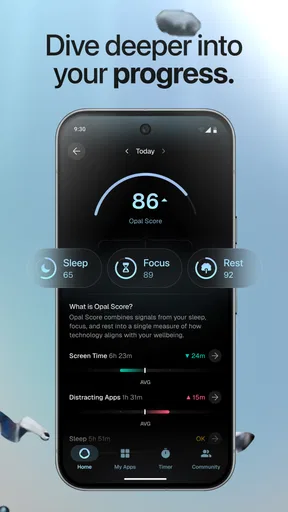
- Usage insights help identify which apps consume the most attention.
- The interface is simple enough for quick setup and everyday use.
Cons
- Some advanced features require a paid subscription.
- Strict blocks may be inconvenient when urgent access is needed.
- Motivational features may feel repetitive after extended use.
- Accurate tracking depends on granting extensive device permissions.
- Users can sometimes be tempted to disable limits or uninstall the app.
FAQs for Opal Screen Time Limit & Timer
What is Opal Screen Time Limit & Timer?
Opal Screen Time Limit & Timer is a digital wellbeing app designed to help you reduce distracting phone use. It lets you monitor how much time you spend in selected apps, create schedules or limits, and start focused sessions during which distracting applications are restricted. It is particularly useful for work, studying, reading, or any activity where frequent notifications and social media checks interrupt your concentration.
How does Opal block or limit distracting apps?
After you choose the applications you want to control, Opal can restrict access according to your selected focus sessions, daily limits, or schedules. When a restriction is active, opening a blocked app may display a reminder or prevent normal access, depending on the feature and device settings. You generally need to grant the permissions requested by Opal, and its effectiveness can depend on your phone model and operating-system version.
Can I customize schedules, screen-time limits, and focus sessions?
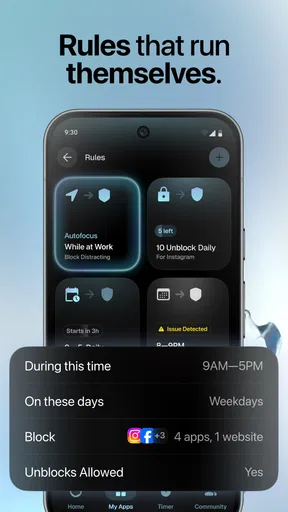
Yes. Opal is built around customizable controls rather than a single fixed timer. You can usually create focus periods for work, school, bedtime, or other routines, select which apps should be limited, and adjust the duration or recurrence. This makes it possible to use stricter restrictions during important hours while leaving essential communication and everyday tools available when you need them.
Is Opal Screen Time Limit & Timer free to use?
Opal offers a free way to begin tracking and managing screen time, but some advanced features may require a paid subscription or premium plan. Depending on the current version, premium tools can include more detailed insights, additional customization, stronger scheduling options, or expanded limits and sessions. Check the in-app pricing and subscription terms before starting a trial, especially if automatic renewal is enabled.
Does Opal work on both Android and iPhone?
Opal is primarily known as a screen-time and focus solution for Apple devices, while availability and feature support can vary across platforms. Before downloading, check the official App Store or Google Play listing for your specific device and operating-system version. Some controls may work differently on Android and iOS because each platform provides different permissions for monitoring usage, blocking apps, and managing notifications.


